DingTalk Exclusive Edition Enterprise SSO
Overview
DingTalk Exclusive Edition supports SSO settings, with authentication pointing to BambooCloud IDaaS. Users log in to DingTalk through BambooCloud IDaaS users.
WARNING
DingTalk SSO is currently only supported in the Exclusive Edition. The account type using SSO login must be an SSO-type account created through the DingTalk V2 address book interface.
Authentication Configuration
BambooCloud IDaaS Configuration
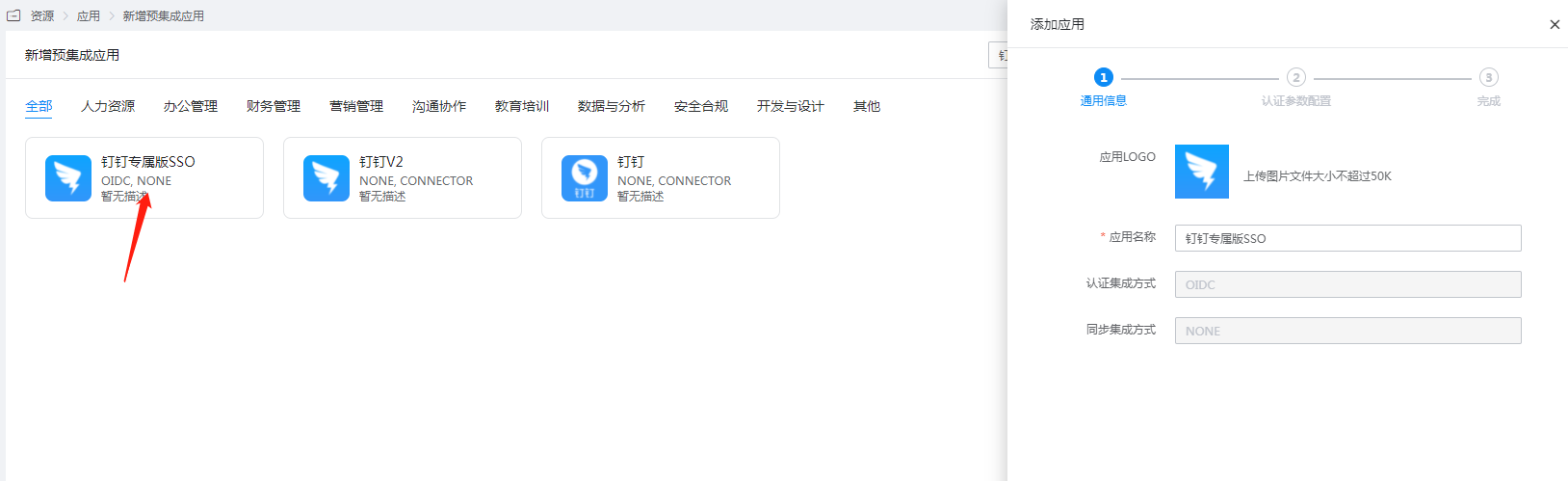
The administrator logs in to the Enterprise Center and adds the pre-integrated application DingTalk Exclusive Edition SSO.
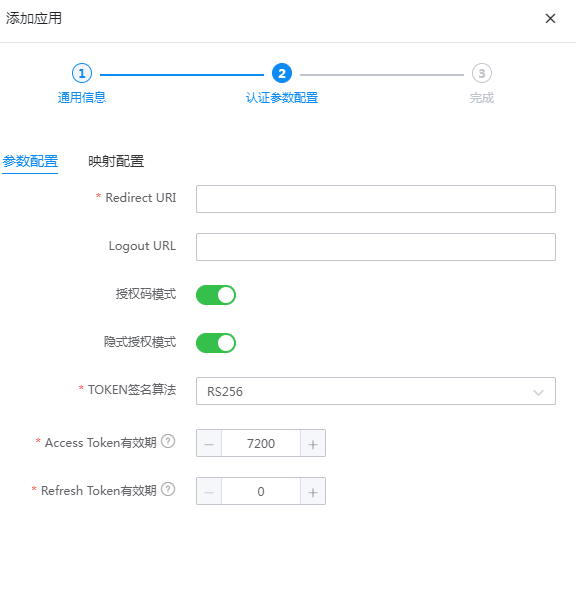
Configure application parameters.
Redirect URI: Fill in https://login.dingtalk.com/oauth2/oidcCallBack.htm
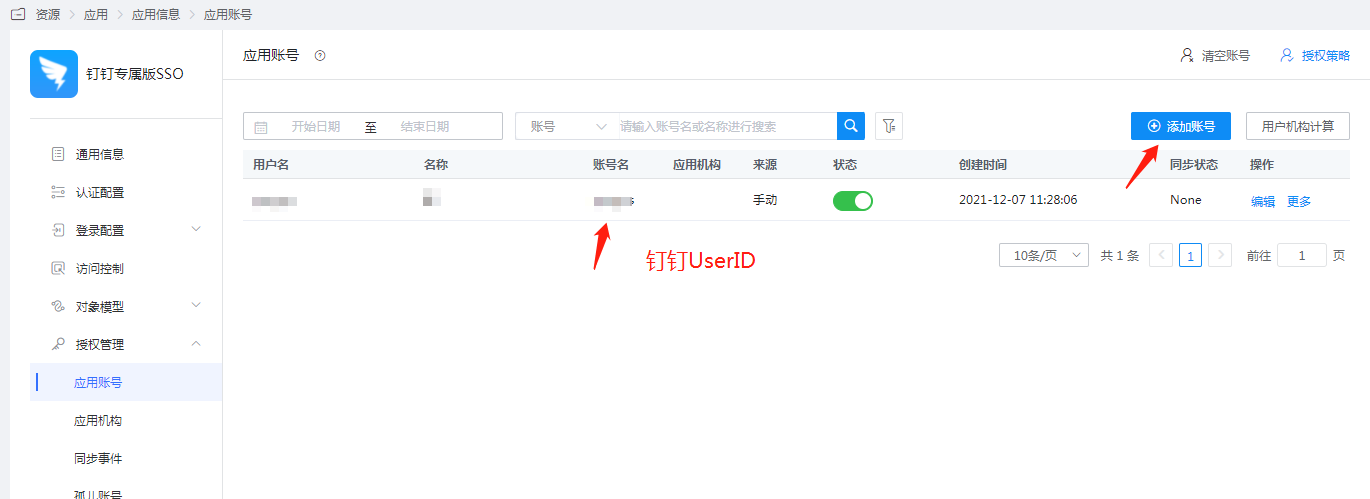
Enter Application Details > Authorization Management > Application Account, add an account, and set the account name to the DingTalk user employee UserID.
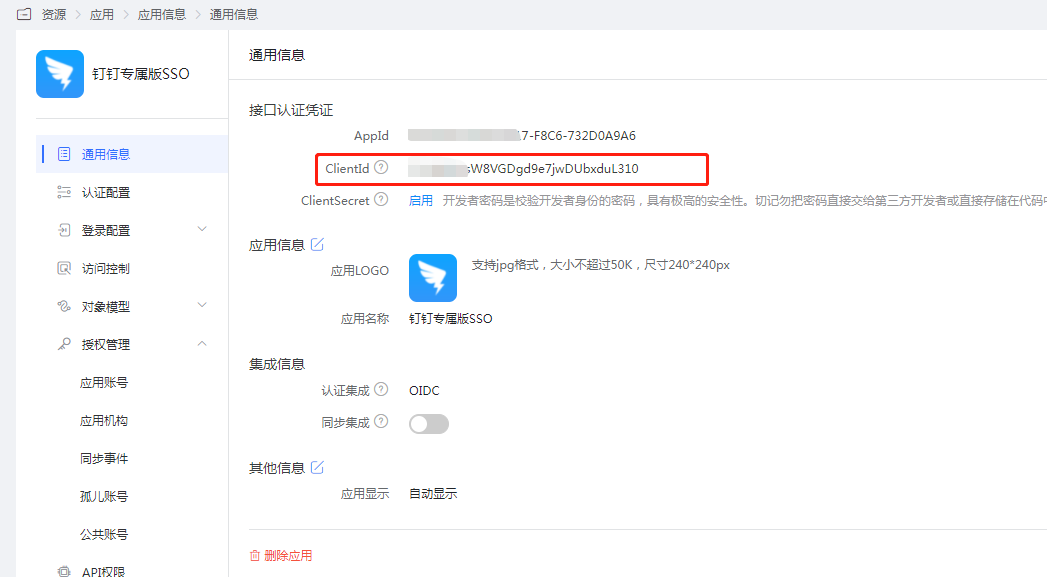
Enter Application Details > General Information to view the ClientId.
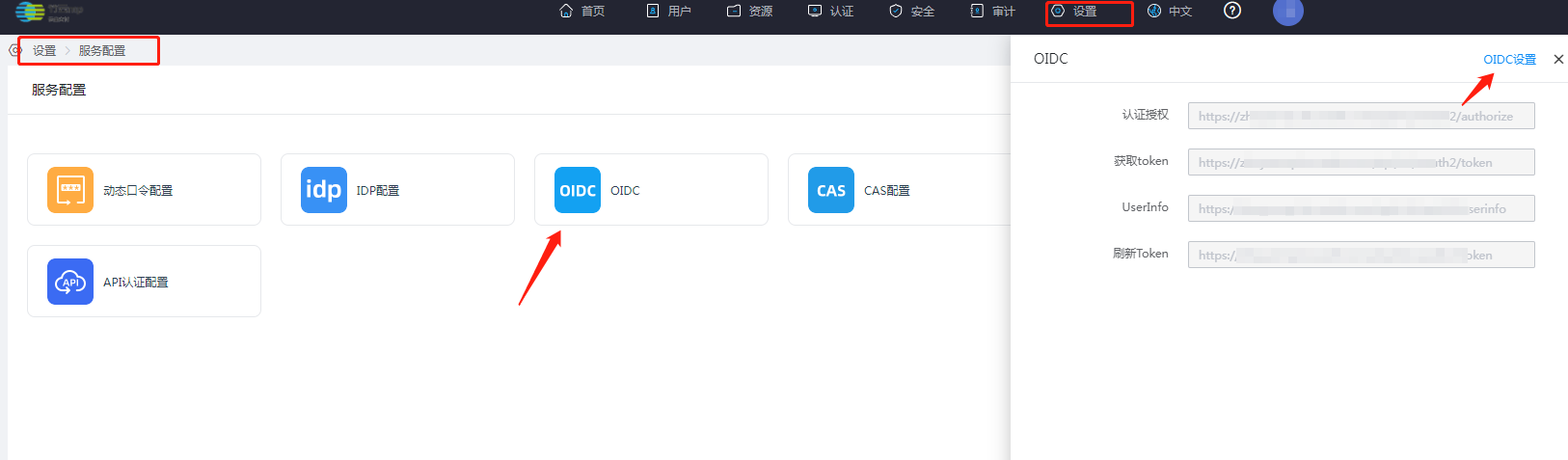
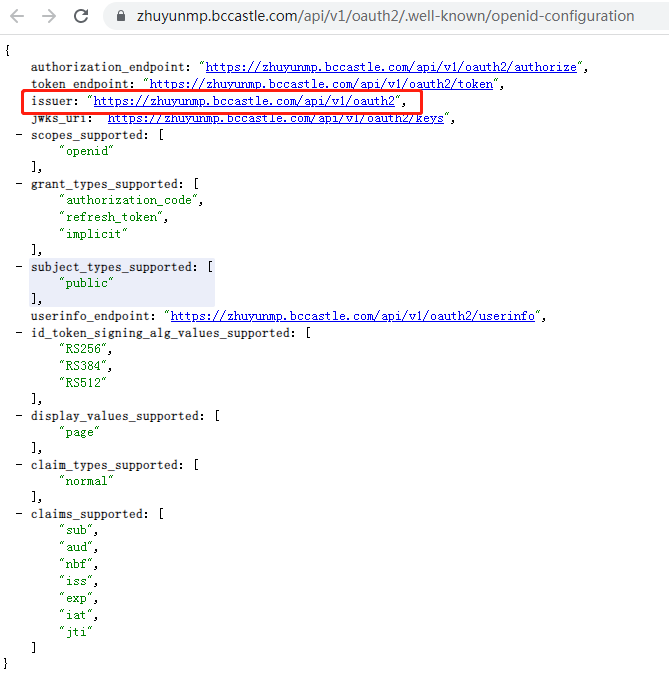
Go to Settings > Service Configuration > OIDC > OIDC Settings to view the OIDC configuration issuer.
DingTalk Backend Configuration
The administrator logs in to the DingTalk management backend, and goes to Security & Permissions > SSO Settings.
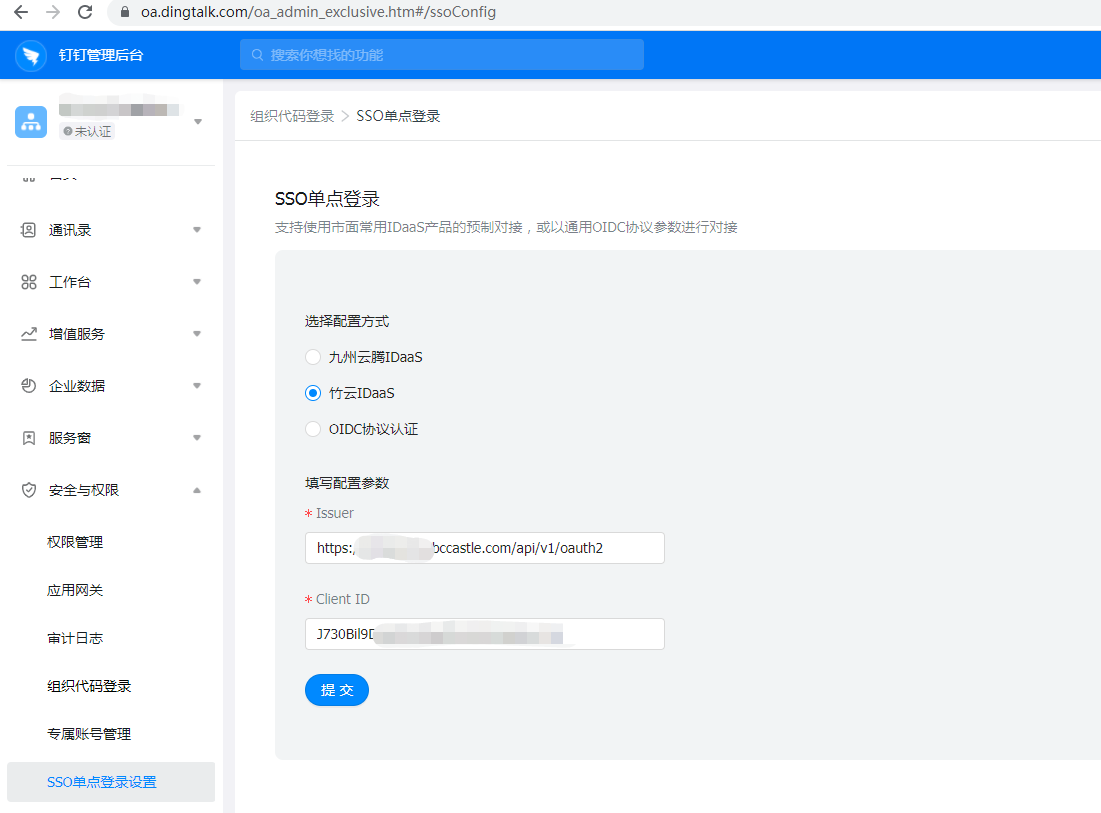
Select the configuration method: BambooCloud IDaaS.
Fill in the configuration parameters.
Issuer: The issuer in the BambooCloud IDaaS OIDC configuration.
Client ID: BambooCloud IDaaS application ClientId.
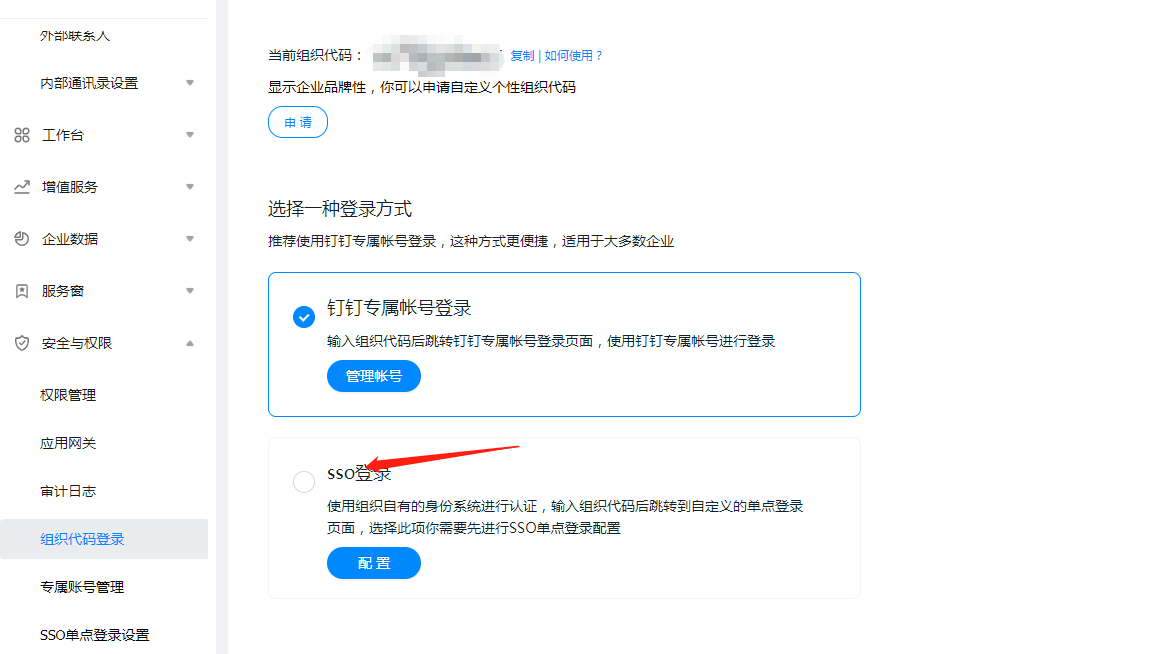
Go to Organization Code Login, view the current organization code, and select SSO login.
Login Verification
Taking the PC client as an example:
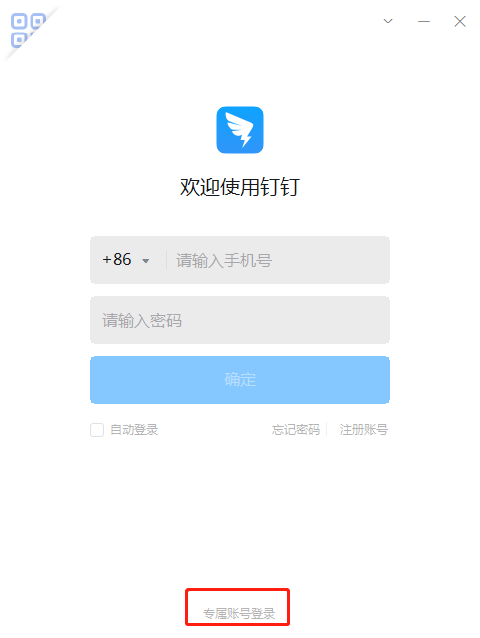
Open the DingTalk client and select the exclusive account.
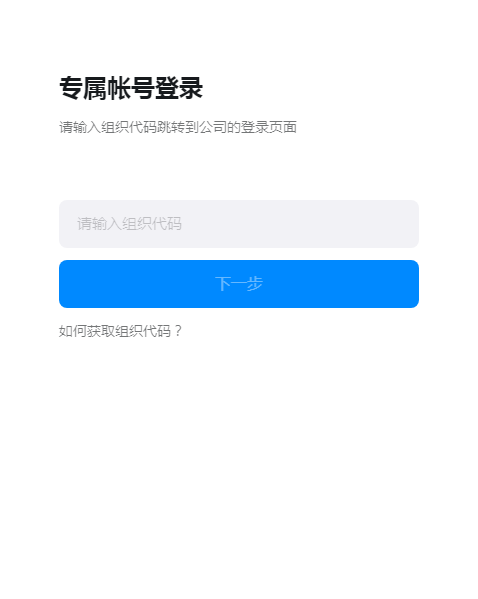
Enter the organization code.
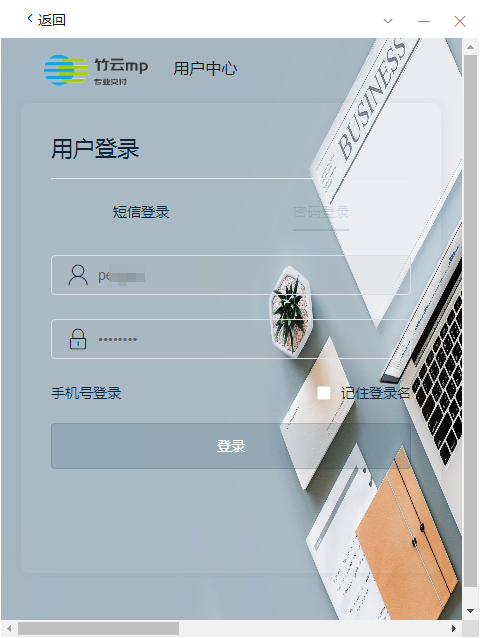
Jump to the BambooCloud IDaaS login page and enter the authorized user login credentials.
SSO users will be prompted to bind their mobile number when logging in for the first time. After binding, they will enter DingTalk.