Huawei Cloud Single Sign-On
Overview
This chapter introduces the internal implementation process and configuration steps for BambooCloud IDaaS and Huawei Cloud to perform federated identity authentication based on the SAML protocol. Huawei Cloud IAM Service Reference Document
Authentication Configuration
Add Huawei Cloud Application on BambooCloud IDaaS
Log in to the Enterprise Center. In the navigation bar, choose Resources > Applications.
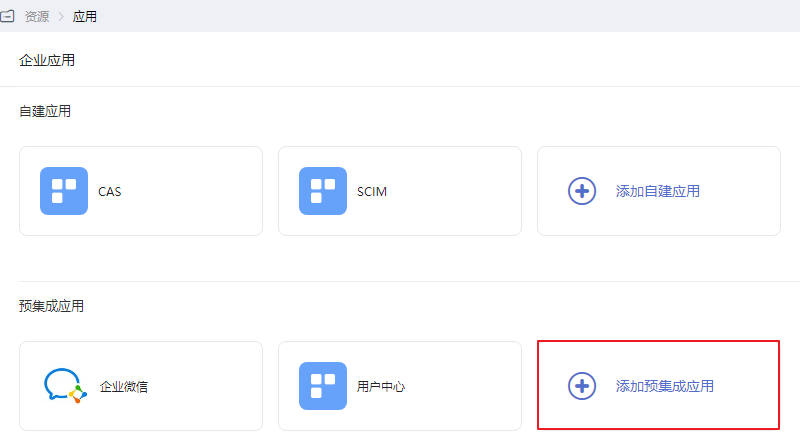
On the Enterprise Applications page, click Add Pre-integrated Application.
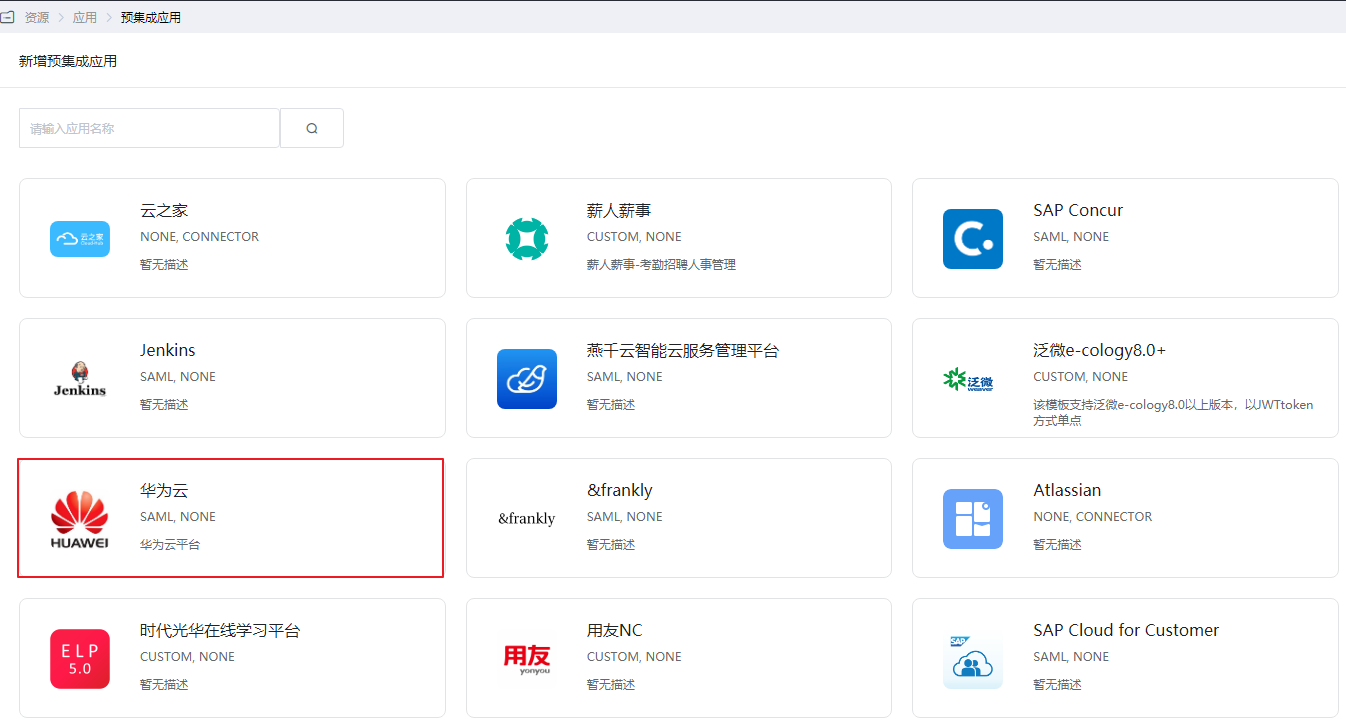
On the Add Pre-integrated Application page, click the Huawei Cloud application.
In the Add Application dialog box that appears, keep the default general information and click Next.
On the Authentication Parameter Configuration page, choose Import SP Application Metadata > Select File, and select the Huawei Cloud metadata file. The system will automatically upload the file and extract the metadata.
Download the Huawei Cloud metadata file and set the file name, for example, "SP-metadata.xml".
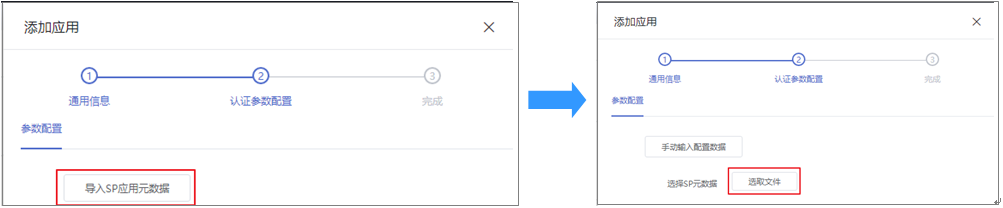
When Select File changes to √, it means the system has extracted the metadata. Click Next to successfully add the Huawei Cloud application.
Create an Identity Provider in the Huawei Cloud Console
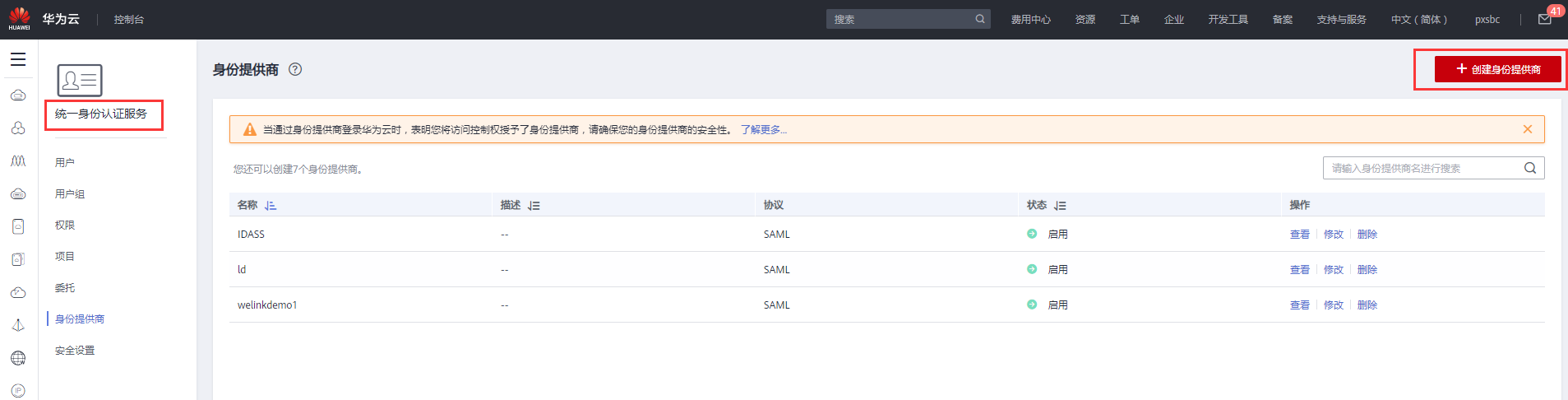
Log in to the Huawei Cloud console as an administrator, enter the Unified Identity Authentication Service IAM, and create a SAML protocol identity provider. For details, refer to Creating an Identity Provider on Huawei Cloud.
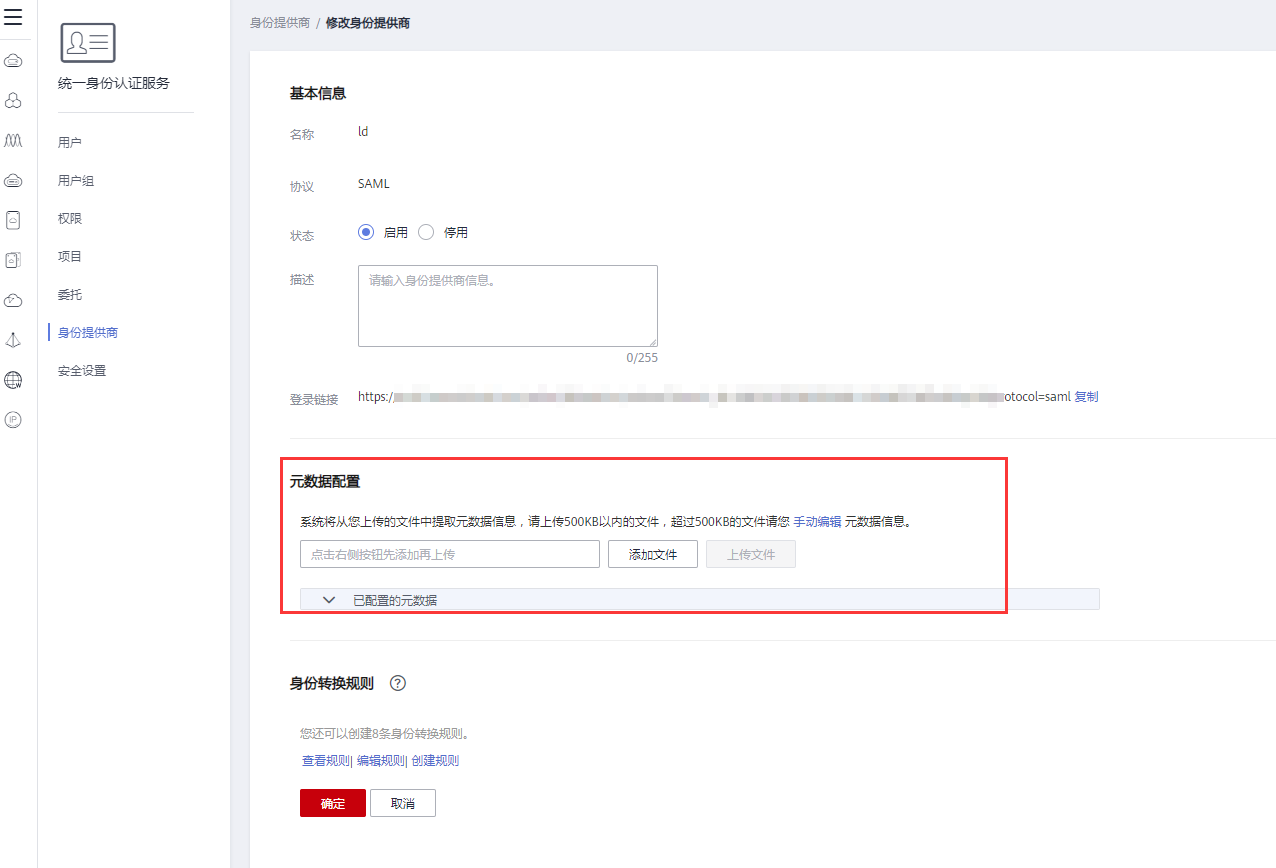
View the identity provider information and configure the BambooCloud IDaaS metadata. For details, refer to Configuring the Metadata File on Huawei Cloud.
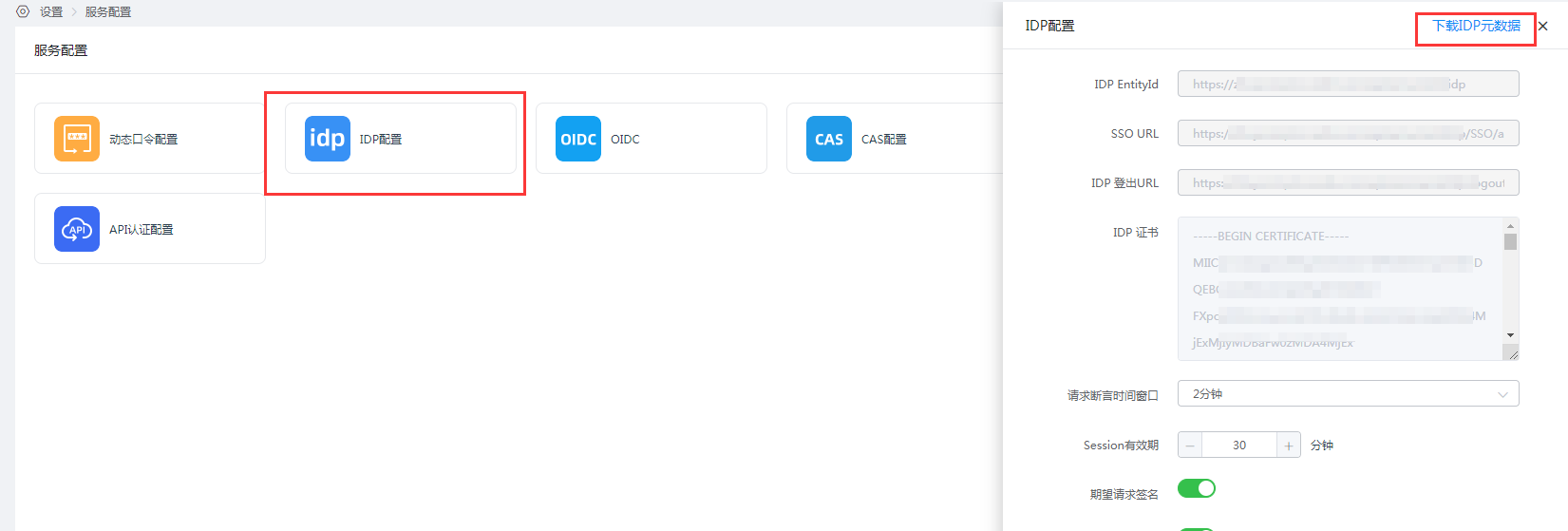
How to obtain BambooCloud IDaaS metadata: Log in to the BambooCloud IDaaS Enterprise Center. In the navigation bar, choose Settings > Service Configuration > IdP Configuration. On the IdP Configuration page that appears, click IdP Metadata in the upper right corner. The data will be saved automatically.
Set identity conversion rules. Refer to Huawei Cloud Identity Conversion Rule Configuration.
Rule example:
json[ { "remote": [ { "type": "Username" } ], "local": [ { "user": { "name": "IDAAS_{0}" } }, { "group": { "name": "idaastest" } } ] }Simple rule description: The
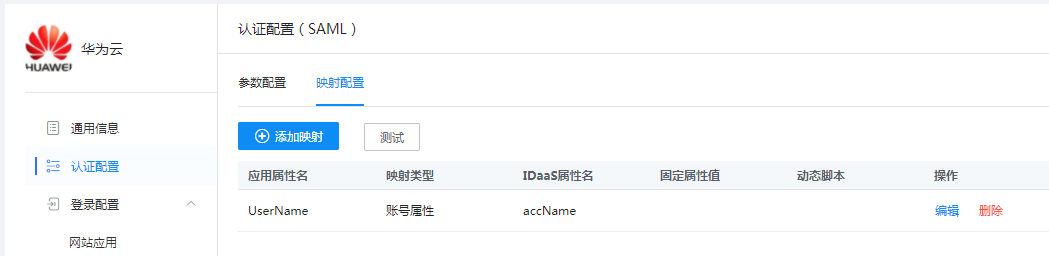
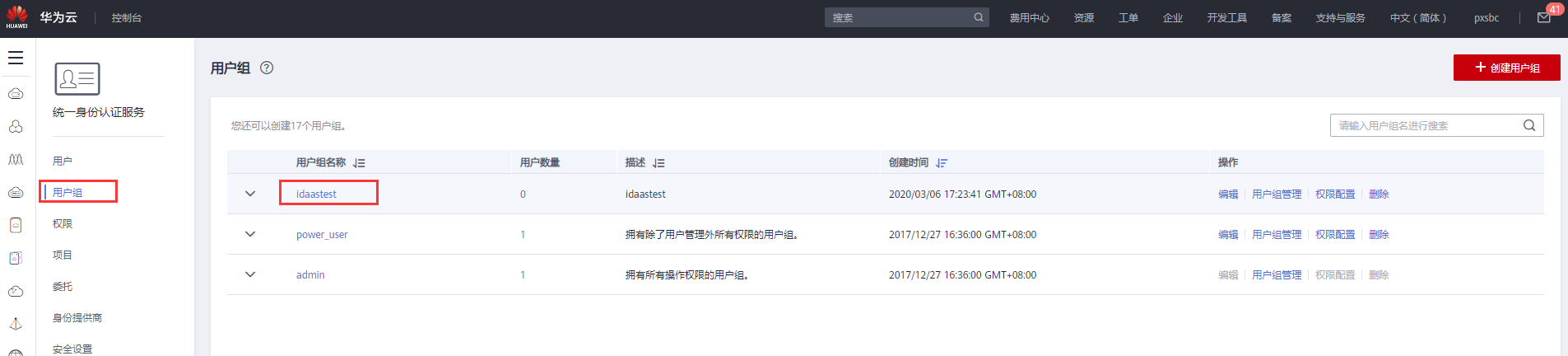
Usernameinremoteis the user attribute passed by BambooCloud IDaaS to Huawei Cloud. After the user authenticates through BambooCloud IDaaS and enters the Huawei Cloud console, the displayed name isBambooCloud IDaaS_Username, and the user has the permissions under theidaastestgroup.
Conditions for the rule to take effect:
- Add a mapping with the attribute name
Usernamein the authentication configuration of the Huawei Cloud application in BambooCloud IDaaS. - Add the
idaastestuser group in the Huawei Cloud Unified Identity Authentication Service.
- Add a mapping with the attribute name
Configure Huawei Cloud Mount URL
TIP
Huawei Cloud currently only supports login initiated by Huawei Cloud, so you need to obtain the login link from the Huawei Cloud identity provider and update it to the Huawei Cloud application mount URL in BambooCloud IDaaS. Only then can you log in to Huawei Cloud through the BambooCloud IDaaS User Center.
Obtain the login link of the Huawei Cloud identity provider in the basic information of the Huawei Cloud identity service provider.
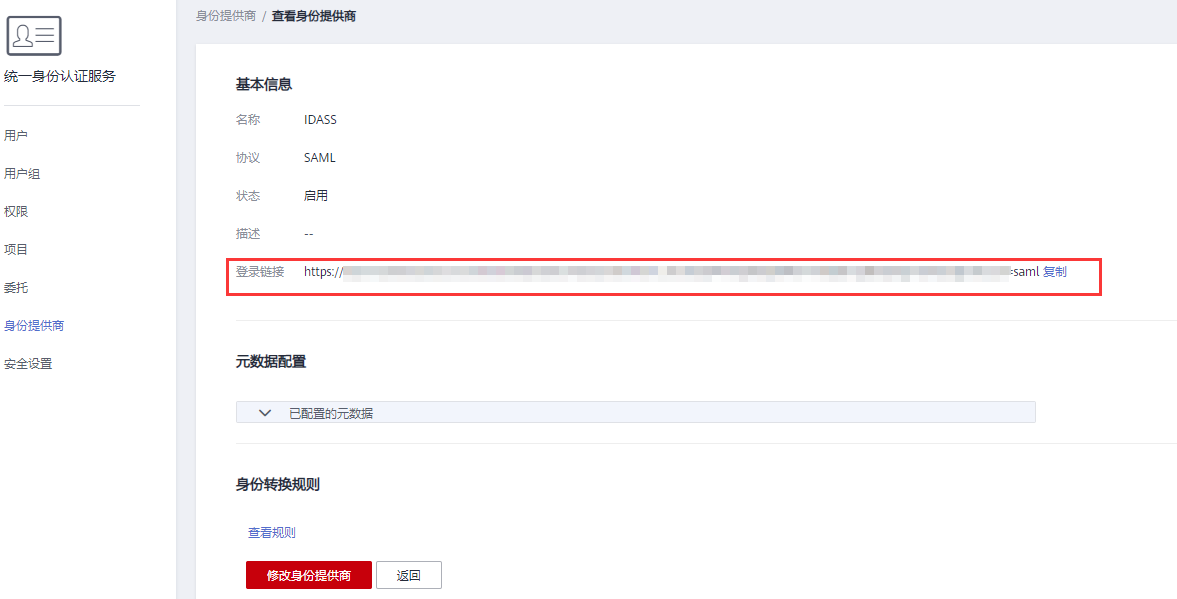
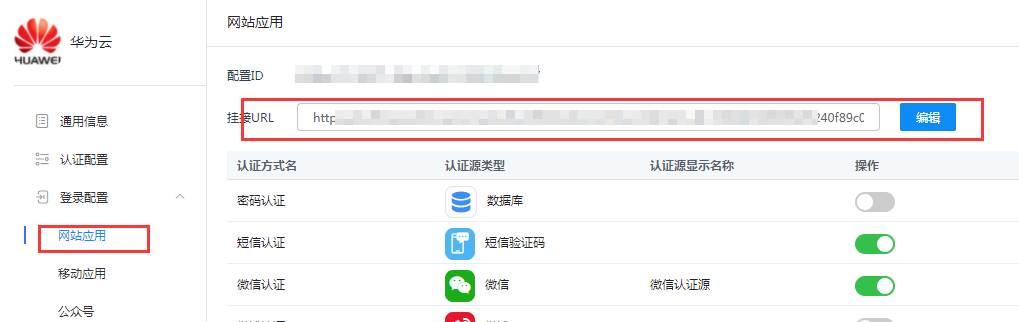
Edit the login configuration of Huawei Cloud in BambooCloud IDaaS, Website Application > Mount URL, and replace it with the identity provider login link obtained in the previous step.
User Authorization
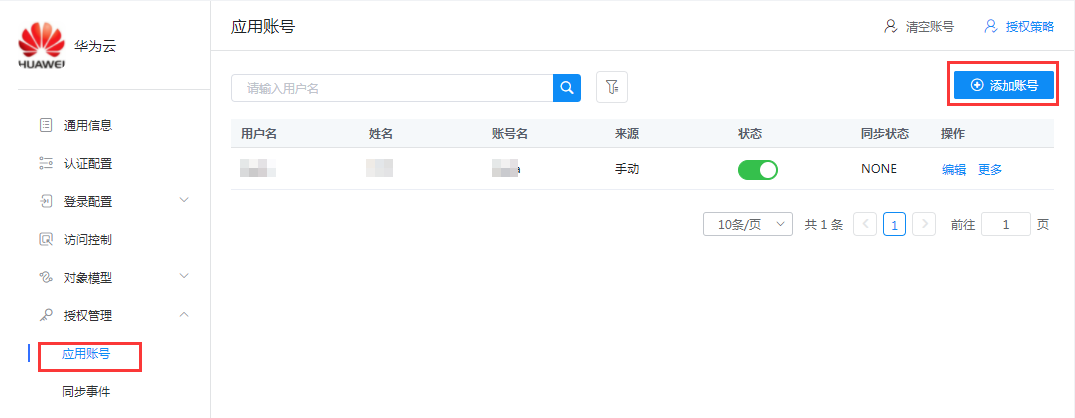
In BambooCloud IDaaS, for the Huawei Cloud application, go to Authorization Management > Application Account > Add Account.
Login Verification
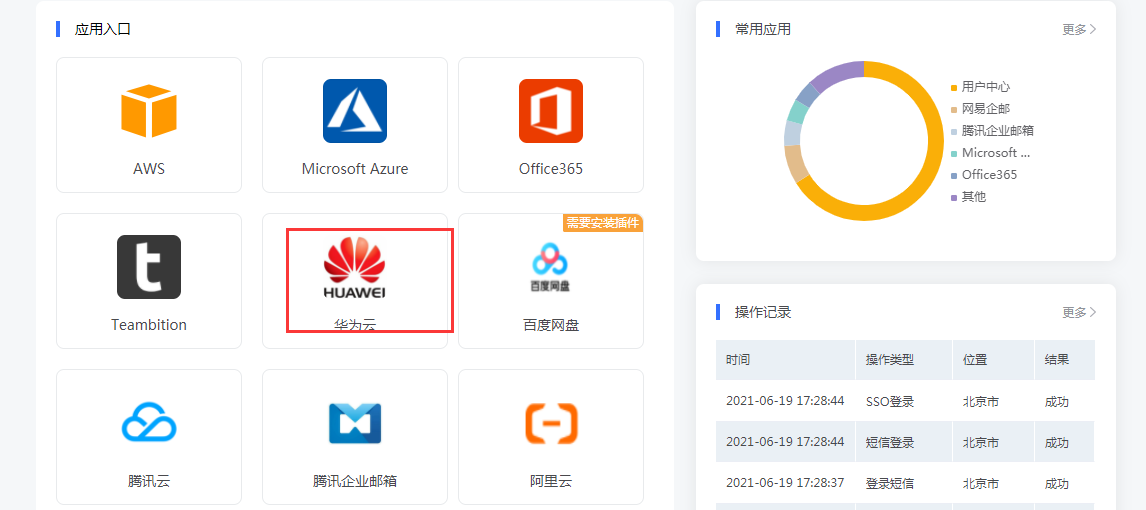
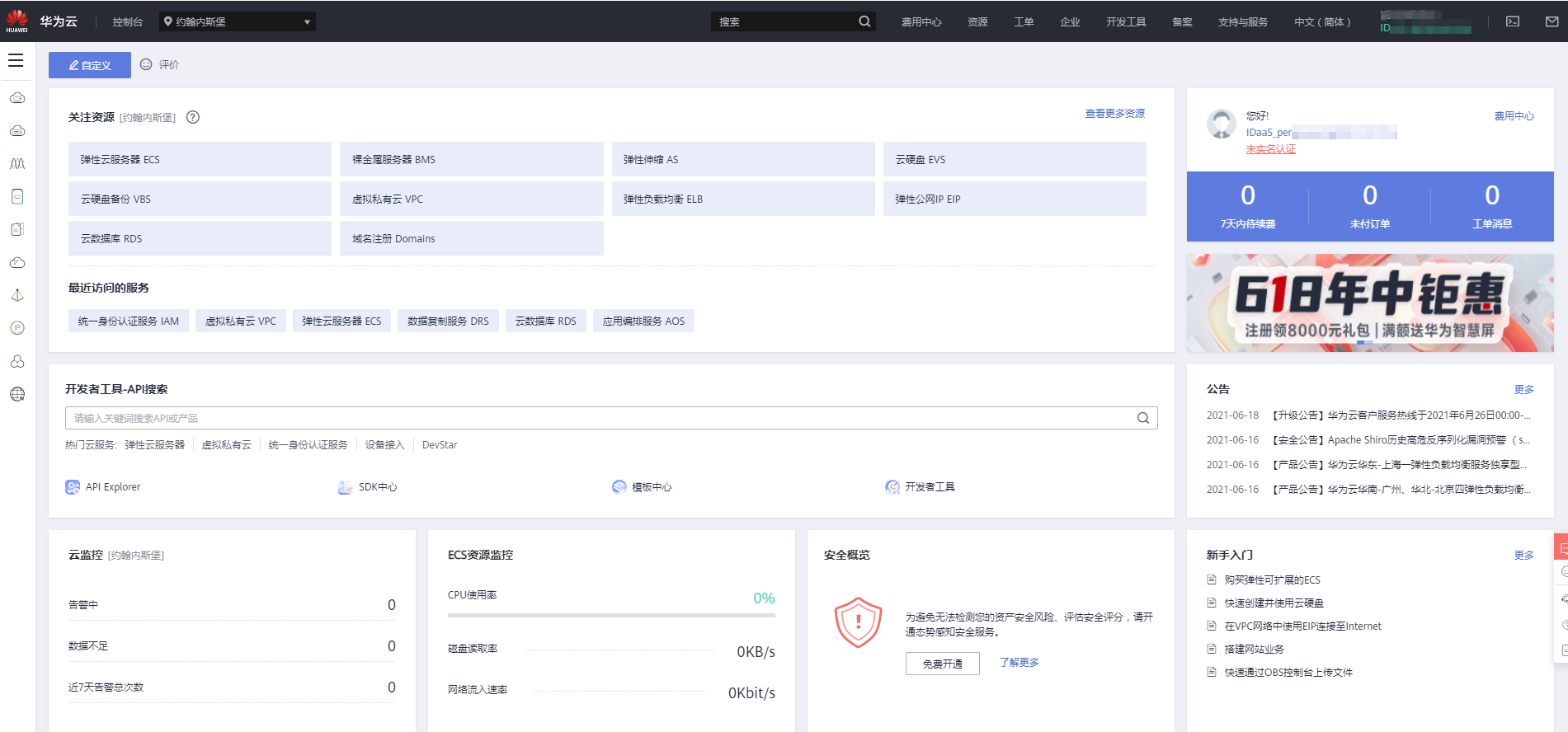
Log in to the BambooCloud IDaaS User Center with an authorized account, click the Huawei Cloud logo, and single sign-on to the Huawei Cloud system.